User Quickstart
Get from zero to your first AI generation in under five minutes. No coding required.
1. Install Nimi
# macOS / Linux
curl -fsSL https://install.nimi.xyz | sh

# or install via npm
npm install -g @nimiplatform/nimi
2. Start the Runtime
nimi startThis launches the Nimi runtime daemon in the background.
3. Verify Everything Works
nimi doctor
nimi status
nimi doctor runs a full environment check: CLI version, config path, gRPC health, runtime mode, process status, local engine status, provider status, and installed model count. nimi status confirms the daemon is reachable.
4. First Local Generation
nimi run "What is Nimi?"The runtime uses your local model by default. If the model is not yet installed, Nimi offers to pull it for you. Once the model is ready, text streams back to the terminal.
5. First Cloud Generation
One-shot with a cloud provider:
nimi run "What is Nimi?" --provider geminiIf the provider API key is missing, Nimi prompts for it once and stores it in the runtime config.
6. Save a Default Cloud Provider
To avoid passing --provider every time:
nimi provider set gemini --api-key-env NIMI_RUNTIME_CLOUD_GEMINI_API_KEY --default
export NIMI_RUNTIME_CLOUD_GEMINI_API_KEY=YOUR_KEY
Then use the saved default:
nimi run "What is Nimi?" --cloud--provider is the one-shot path. --cloud is the saved-default path.
Quickstart Walkthrough
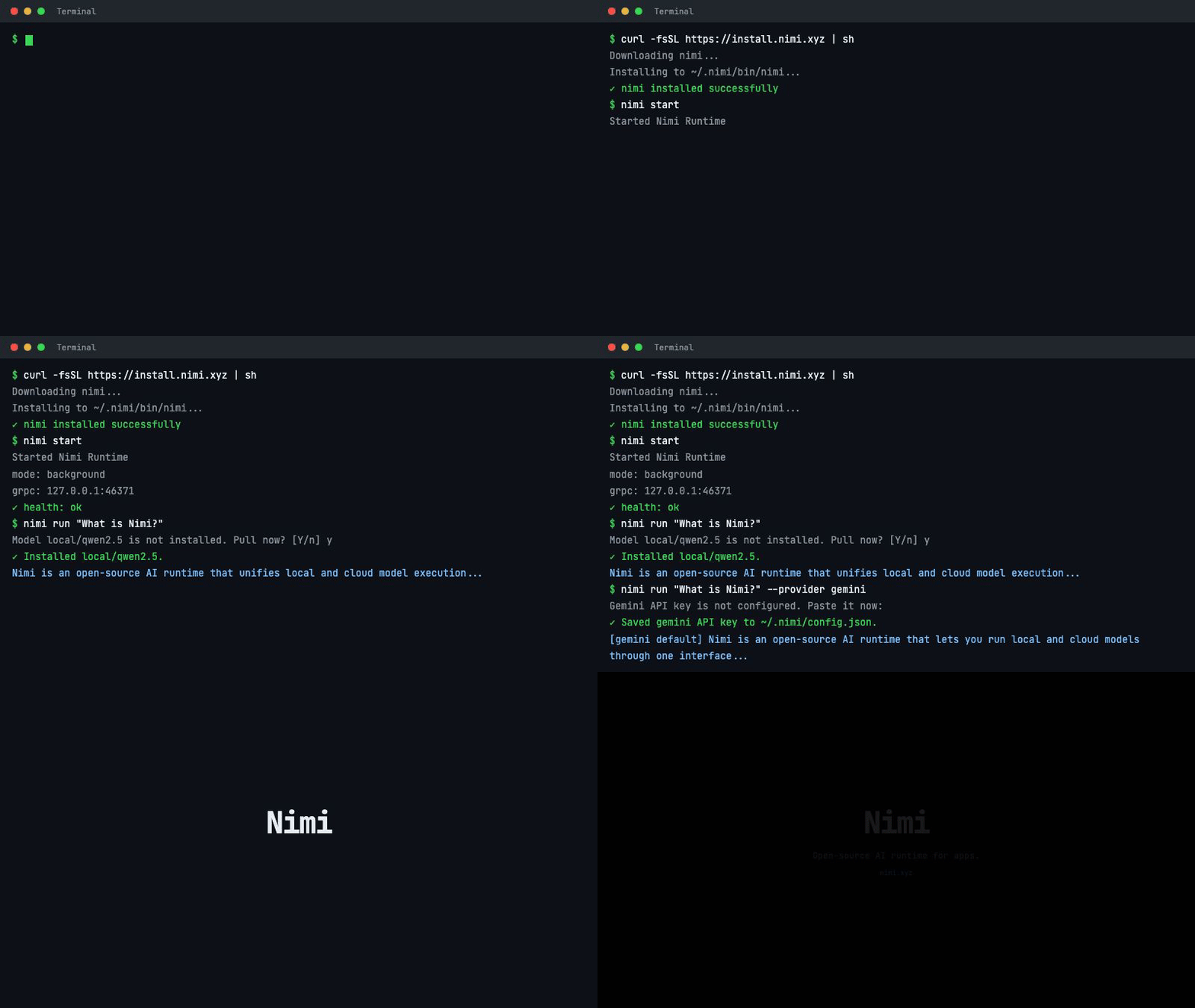
Install, start the runtime, then run your first local or cloud prompt from the CLI.
Next Steps
- Installation Guide -- detailed install options, system requirements, and updating
- CLI Command Reference -- full list of available commands
- Cloud Provider Setup -- configure and manage cloud providers
- Model Management -- pull, list, and manage local models
- Desktop App Guide -- graphical interface for AI interactions
- Troubleshooting -- common errors and how to fix them